How to Create GST Invoice for Meesho Sellers: Complete Step-by-Step Guide 2026
As a Meesho seller, understanding when and how to create proper GST invoices is essential for maintaining compliance with Indian tax regulations. Whether you are a regular registered dealer or selling under the composition scheme, this comprehensive guide walks you through the complete process of generating professional GST invoices specifically designed for Meesho marketplace orders.
Do Meesho Sellers Need to Issue GST Invoices?
The requirement to issue GST invoices depends on your registration status and annual turnover:
- Regular GST Registered Sellers: If you are registered under the regular GST scheme, you must issue a tax invoice for every sale, regardless of the order value. This is mandatory under Section 31 of the CGST Act 2017.
- Composition Scheme Sellers: If you operate under the composition scheme (annual turnover up to ₹1.5 crore for goods), you must issue a "Bill of Supply" instead of a tax invoice. You cannot charge GST separately on your invoices.
- Unregistered Sellers: If your annual turnover is below the GST registration threshold (₹40 lakh for goods, ₹20 lakh for services), you are not required to issue GST invoices. However, Meesho will still deduct TCS (Tax Collected at Source) at a significant on your sales.
Understanding Meesho's GST TCS Deduction
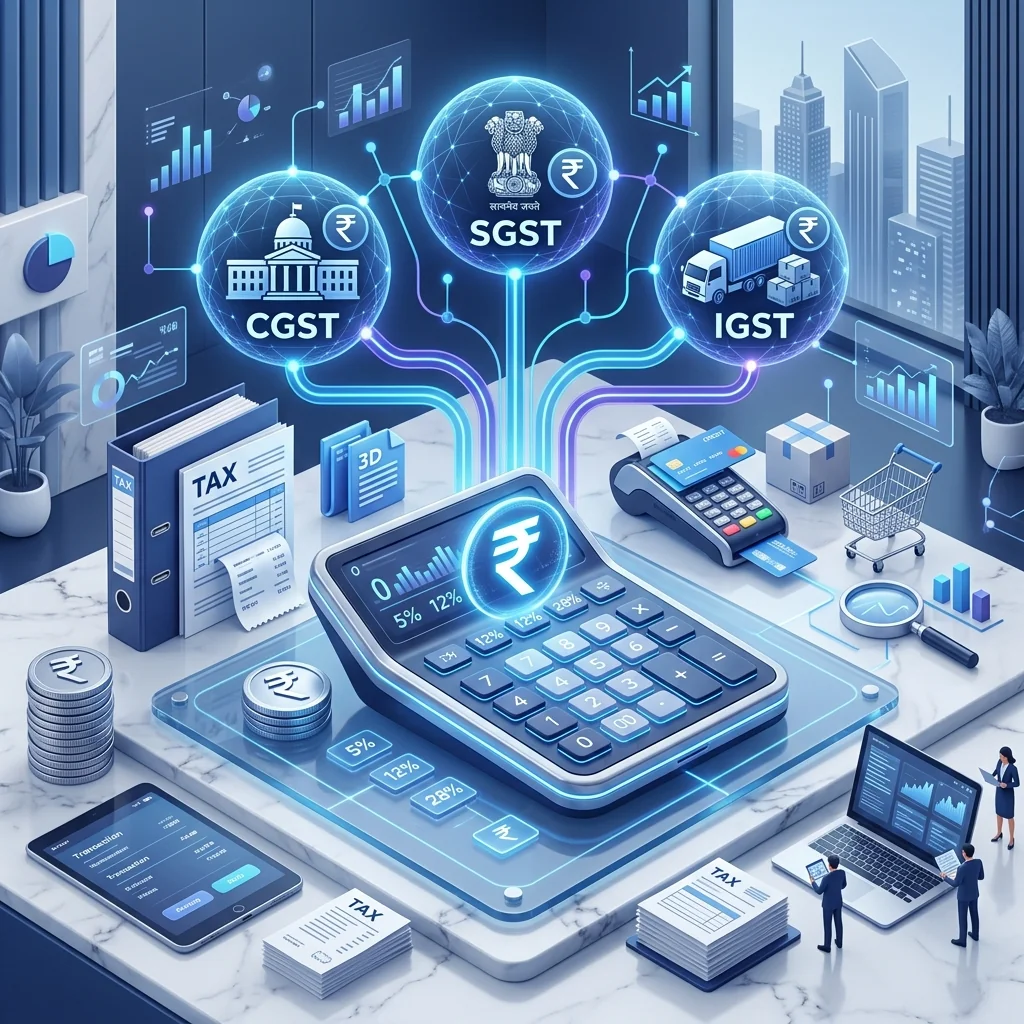
Under Section 52 of the CGST Act, e-commerce operators like Meesho are required to collect Tax Collected at Source (TCS) at a significant (0.a significant CGST + 0.a significant SGST for intra-state, or a significant IGST for inter-state) on the net value of taxable supplies made through their platform. This TCS amount is reflected in your Meesho payment settlement reports and can be claimed as credit while filing your GSTR-3B return.
Step-by-Step Guide: Creating GST Invoice for Meesho Orders
Step 1: Gather Order Details from Meesho Supplier Panel
Log into your Meesho Supplier Panel and navigate to the "Orders" section. For each order that needs an invoice, note down the following details:
- Order ID and sub-order ID
- Product name, SKU, and quantity
- Selling price (the price at which you listed the product)
- Buyer's delivery state (this determines IGST vs CGST+SGST)
- Order date and expected delivery date
Step 2: Enter Your Seller Details
In the GST Bill Generator, enter your business details as the supplier:
- Legal business name as registered with GST
- GSTIN (15-digit GST Identification Number)
- Registered business address including state and PIN code
- Contact phone number and email address
Step 3: Enter Buyer Details
For B2C Meesho orders (most individual customer orders), you typically enter "Cash Customer" or the customer's name. For B2B orders where the buyer provides their GSTIN, enter the complete buyer details including their GSTIN, business name, and registered address.
Step 4: Add Product Line Items
For each product in the Meesho order:
- Enter the product description matching your Meesho catalog listing
- Add the correct HSN code (e.g., 6204 for women's kurtis, 6109 for t-shirts, 8517 for mobile accessories)
- Enter the quantity ordered
- Set the unit rate (your selling price minus Meesho's commission)
- Select the applicable GST rate (typically a significant for apparel below ₹1000, a significant for apparel above ₹1000, a significant for electronics)
Step 5: Verify Tax Calculations
The GST Bill Generator automatically calculates:
- CGST and SGST (for intra-state supply, when seller and buyer are in the same state)
- IGST (for inter-state supply, when seller and buyer are in different states)
- Total taxable value and final invoice amount
- Amount in words for the total value
Step 6: Add Bank Details and Download
Add your bank account details for payment reference, optionally generate a UPI QR code for digital payments, and preview the complete A4 invoice. Download the invoice as a PDF and attach it to the Meesho shipment package.